

Guide · Make more of your existing images
Product image cutouts: what to request and how to check the edges
Brief background removal clearly and check fine details, glass, shadows and finished files before approving your cutouts.
Supply complete, sharp originals and show where the cutouts will be used. Agree the treatment of fine edges, internal gaps, glass and shadows, then test a representative sample in the intended layout.
What is a product image cutout?
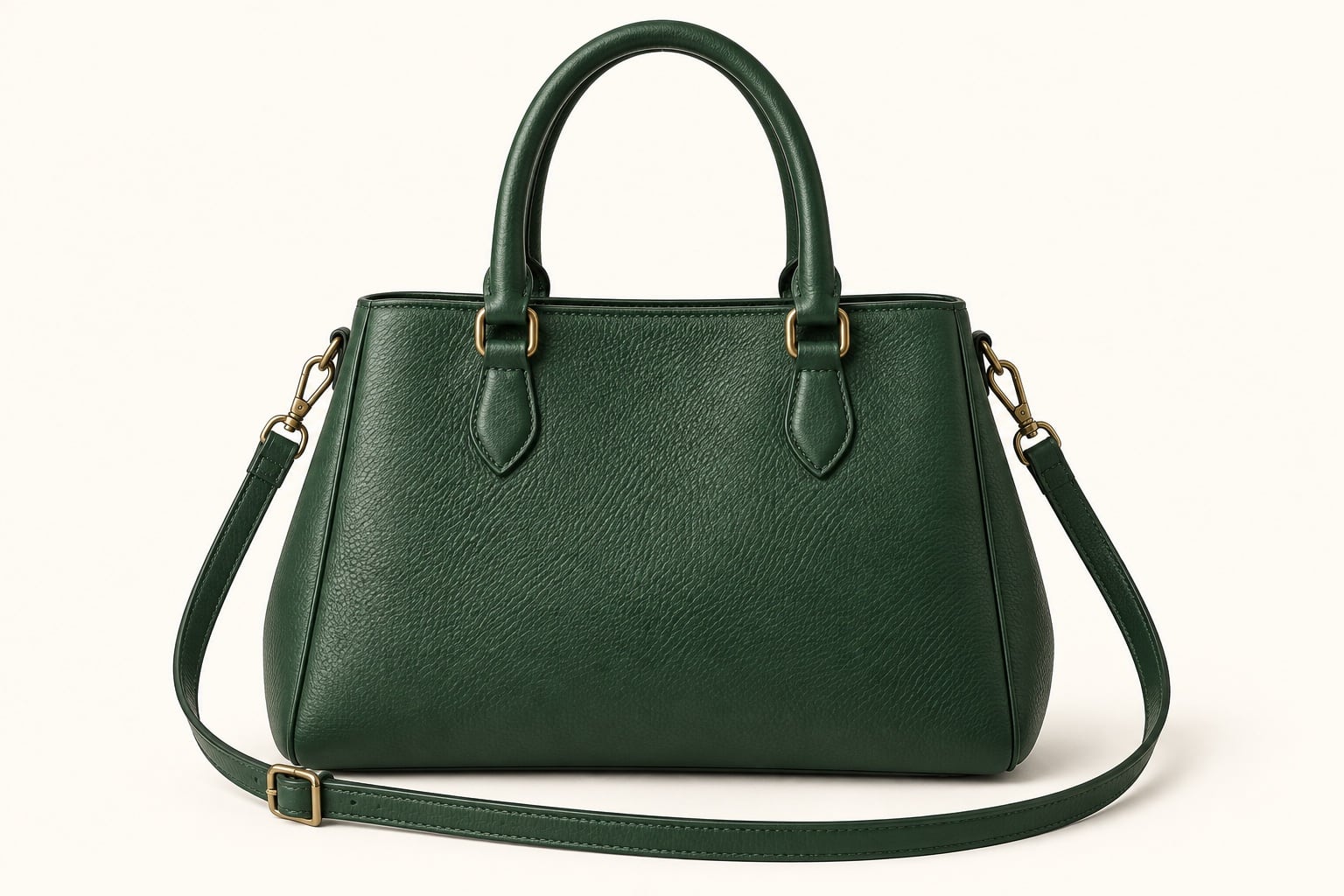
A product cutout separates the photographed item from its original background. It can be supplied on a new background or as a file with transparent space around the product, ready for a designer to place into a layout. The useful result is a complete, recognisable product with a natural edge.
Background removal is only one part of image editing. It does not automatically include cleaning dust, correcting colour, reshaping an item or creating a new shadow. List those requests separately so the quotation and sample cover the same work.
Start with the intended use: a shop tile, catalogue layout or promotional design. Supply the actual background colour or a layout example where possible. A cutout that looks clean against white may reveal an unwanted pale outline when placed on a dark design.
Supply originals that show the complete product
Send the highest-quality photographs available and keep the originals untouched. Include the whole item, with its handles, straps, fine fittings and any other parts you need to retain. Background removal cannot reveal a section that was outside the photograph.
Ask for assessment of a representative selection before sending a large batch for identical treatment. Include the simplest shape and the most awkward example. A plain carton and a fine chain may both need their backgrounds removed, but their edges present different work.
If the outline is blurred, a highlight hides an edge or the subject blends into the background, flag it early. Our retouching or reshoot guide helps you decide whether the source contains the detail the finished image needs.
Check the inside spaces as well as the outside edge
| Product feature | What to check in the sample |
|---|---|
| Handles, straps and open frames | The spaces inside them should receive the agreed background treatment too. |
| Fine chains and fittings | Small links and thin parts remain intact, without filled gaps or missing sections. |
| Textile edges and fringe | The edge retains its natural character instead of becoming an unnaturally smooth outline. |
| Pale products | White areas of the product remain present, distinct from the background being removed. |
| Reflective surfaces | Highlights that describe the material remain believable, with distracting colour spill assessed separately. |
Review the sample at the size customers will see, then inspect important edges more closely. Look for a light or dark fringe, abrupt steps, missing corners and patches of the old background. Check against the intended design rather than judging only a small preview on white.
Preserve the real product throughout. Removing the background should not change its proportions, branding, label wording, stitching or material. If a mark might be part of the design, explain whether it should remain.
Treat glass and translucent areas as a separate question
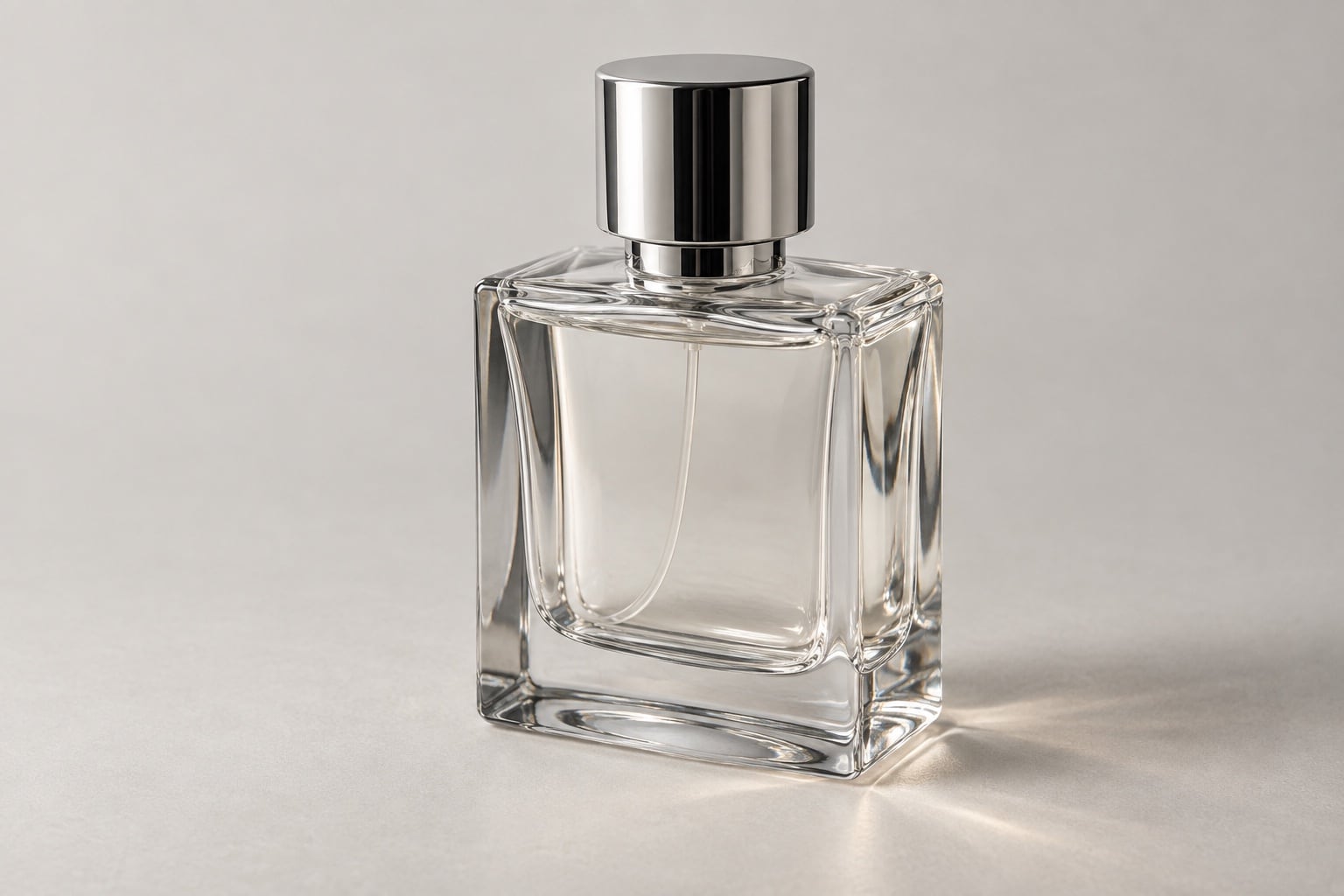
A glass bottle needs attention inside its outline as well as around it. The original scene may be visible through the body, while reflections and highlights help describe the glass. Simply making every pale area disappear can remove useful product detail.
Show the editor the background on which the image will be used and ask for a sample of the most difficult item. Assess whether the glass still looks convincing and whether traces of the original background remain. Do not assume one version will look equally natural on every colour.
Describe the result you need rather than prescribing a particular software tool. For complex or partly transparent objects, agree what the source photograph can support before approving the full collection. If new photography is needed, plan the lighting and background around the intended final use.
Decide what happens to the shadow
The product outline and its shadow are different decisions. A soft shadow can help an item feel grounded on a shop page. A designer building a composite may want a version without it, or a shadow that can be adjusted separately.
Specify whether to retain the existing shadow, discuss a new treatment or remove it. Include a reference for direction and softness if consistency across a range matters. Do not assume that a request for “cutouts” includes a new shadow or a reflection beneath every item.
Check the shadow in the intended layout. A dark patch left from the old surface can look like part of the product, while a detached shadow can make an item appear to float. Agree the sample before applying the treatment to the batch.
Ask for the files your designer or shop needs
If you need transparency, request it explicitly. A PNG can contain a solid background as well as transparent areas, so the extension alone does not prove that the file is a usable cutout. JPEG does not preserve transparency. Adobe’s JPEG and PNG comparison explains the format distinction.
Agree the pixel dimensions, margins and filenames. Say whether you need a finished white-background version as well as a transparent version, and whether editable files are required. Have the recipient test a sample in the actual design or upload workflow before the final batch is exported.
For example: “We have twelve handbag photographs. Please remove the backgrounds, including the spaces inside handles and straps, while retaining stitching, fittings and labels. Supply transparent versions without shadows and white-background versions with an agreed soft shadow. Here are three originals and our shop layout for assessment.”
Those twelve photographs would produce twenty-four finished files in this example. Supply your required dimensions and deadline, and ask the editor to confirm the scope and quotation. Our photo editing brief guide covers the wider file list and sample approval process.
Explore our photo editing services or send representative images to the studio to discuss the cutouts you need.
Service information and further reading
Need product cutouts for your shop or catalogue?
Send representative originals and your intended layout so we can assess the edges, finish and delivery requirements.